

GLOBE CLOCK
Globe Clock is constantly updated through the day to show which parts of the world are in night-time and to show the local time at locations of your choice. The globe is also updated through the year to reflect the typical seasonal state of the vegetation and the ice caps.
You can choose a set of cities, or other locations, which will be displayed on the globe with their local time and date. In addition, if you move the cursor over the globe the local time of the location under the cursor will be displayed.
The globe can be gently spinning or stationary. Click on the globe to stop it spinning. Swipe the globe to the left or right to set it spinning, slow or fast. Drag the globe to turn it or change its tilt.
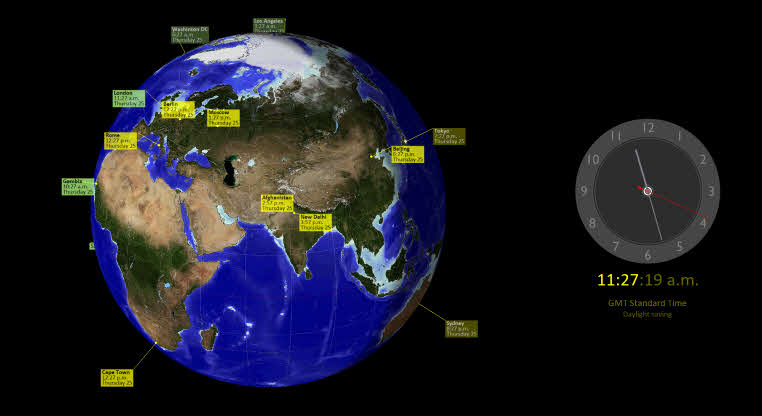
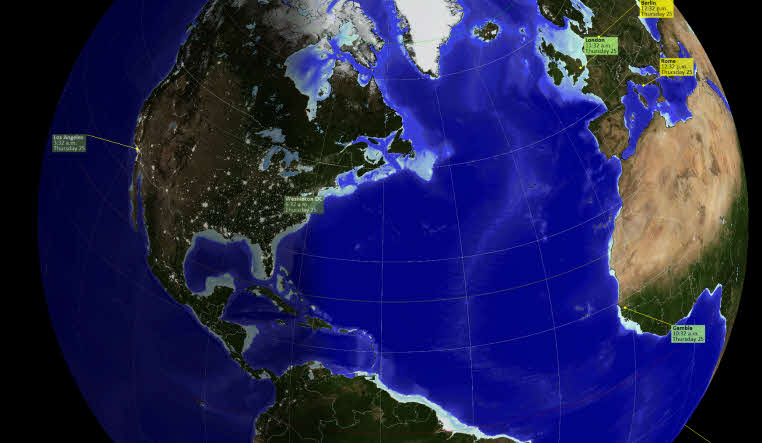
The globe can show the entire world or you can zoom in to see a partial globe in greater detail. Zoom in with the + key, the up arrow, or by using the mouse wheel. Zoom back out with the - key, the down arrow, or with the mouse wheel.
Optionally, you can display an analogue clock face showing your own local time. The clock face is hidden when zoomed in.
Globe Clock is configured from the "Settings" page. On the left-hand side is a list of the locations that you currently have selected to be displayed on the globe. On the right-hand side is a long list of predefined city and country names and locations. To add one of these predefined locations to your selection click on it in the list then click on the "Add location" button above. If the city that you want is not on the list then add the country or time zone then manually edit its name, latitude, and longitude.
If you have several locations that are close to each other you may find that their labels interfere with each other. Use the horizontal and vertical alignment options to adjust the label of a location. You can also select the "single line display on map" option which will result in a label which just shows the location name and the local time on one line of text.
Options which apply to all of the labels are "Use 24 hour clock" (as opposed to am/pm), "Show date on labels", and "language for day names". Available languages are Arabic, Chinese, Danish, Dutch, English, Finnish, French, German, Italian, Japanese, Korean, Polish, Portuguese, Russian, Spanish, Swedish, and Turkish. Place names can be edited manually to suit your language.
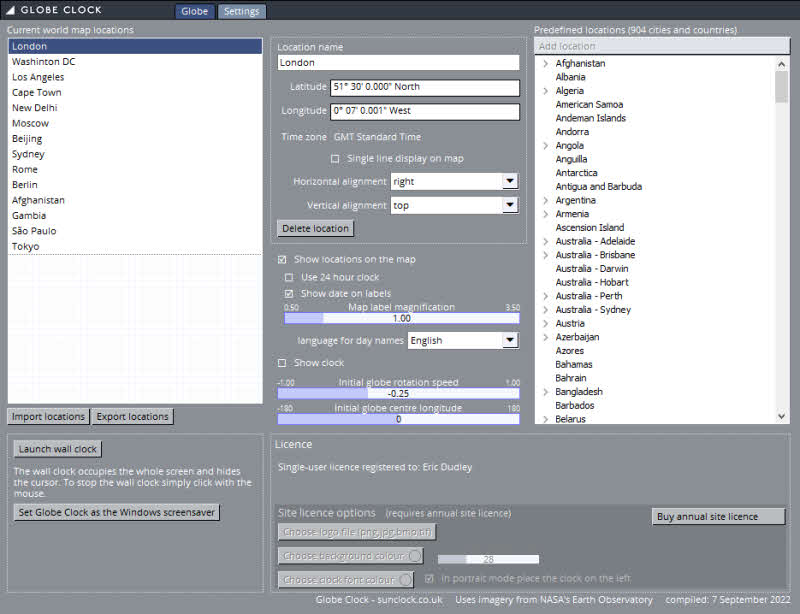
If you want to use Globe Clock as a wall clock then simply click on the "Launch wall clock" button. This launches the screen saver version of the program which fills the whole screen and uses the settings that you have defined on the Settings page. When in screen saver mode the cursor is hidden and users cannot click on or drag the globe to change its spin. To quit the screen saver press any key or move the mouse. Globe Clock can be selected as the default Windows screen saver.
If you have a multi-monitor system you have the option to choose which monitor the wall clock appears on. Further options allow you to choose to display the clock and determine the initial conditions of rotation speed (if any) and the initial longitude.